To improve productivity and collaboration, you can create tasks related to technical, business, and marketplace assets. These tasks may be to-do tasks, access requests, or issues. You can manage the task types via Action Center Settings.
To add tasks, follow these steps:
- On the Discover Assets dashboard, click the required <Asset_Type> card and then click Browse <Asset_Type> . A list of assets appears.
- Use the search box to find the required asset.
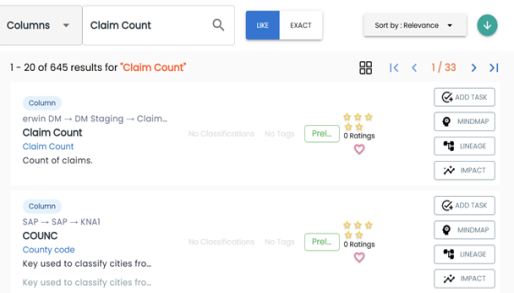
For example, in the following image, a columns list appears after entering Claim Count as the search string and selecting Columns as the asset type.
- Click Add Task.
- Click the required task type.
- Enter appropriate values in the fields. Refer to the following table for field descriptions.
- Click
 .
.
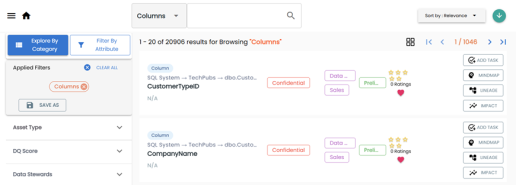
For example, in the following image, a list of 20906 columns appears when you click the Columns card and then click Browse Columns on the Discover Assets dashboard.
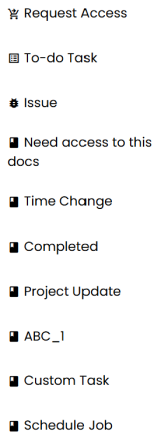
A list of task types appears.
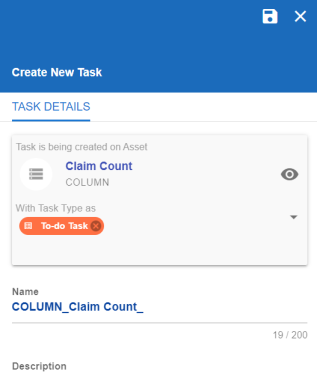
The Create New Task page appears.
|
Field Name |
Description |
|---|---|
|
Task is being created on Asset |
Specifies the asset for which the task is being created. For example, Column. |
|
With Task Type as |
Specifies the task type. For example, To-do Task. |
|
Name |
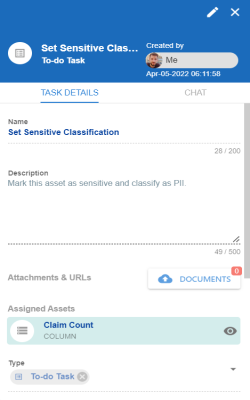
Specifies the name of the task. By default, it auto-populates with a name in the following format: <Asset_Type>_<Asset_Name>. You can edit it and rename the task. For example, Set Sensitive Classification. |
|
Description |
Specifies a description of a task. For example: Mark this asset as sensitive and classify as PII. |
|
Important |
Specifies whether the task is important |
|
Due |
Specifies the due date of the task. To set the due date, click |
|
Assign Users |
Specifies the users assigned to the task. You can assign DI and BU users from the list. For a business asset, users with Data Governance (DG) assignment and the one who creates the task are assigned to the task by default. |
|
External user emails |
Specifies the email ID of external users. For example, chris.harris@quest.com |
 .
.The task is created and saved. To edit the task details and attach relevant documents, click  . You can manage tasks via My Action Center.
Chat
Use the Chat tab to send messages to the assigned and external users of a task.
On the Chat tab, enter your message in the text box and use the following options:
- Assigned
-
Use this option to send messages to the assigned users.
- External Users
-
Use this option to send messages to external users.
Users are notified via Messaging Center.